Fujifilm GFX100RF Pro Tips, Secrets, Tutorial & User's Guide
By Ken Rockwell
<— Back to GFX100RF Review
Fujifilm: GFX100RF GFX 100S II GFX 100 II GFX100 GFX50R X100VI X100V X100F X-T30 III X-E5 X-H2 X‑H2s X-T5 X-T50 X-M5 X‑T30 X-S20 Film Lenses
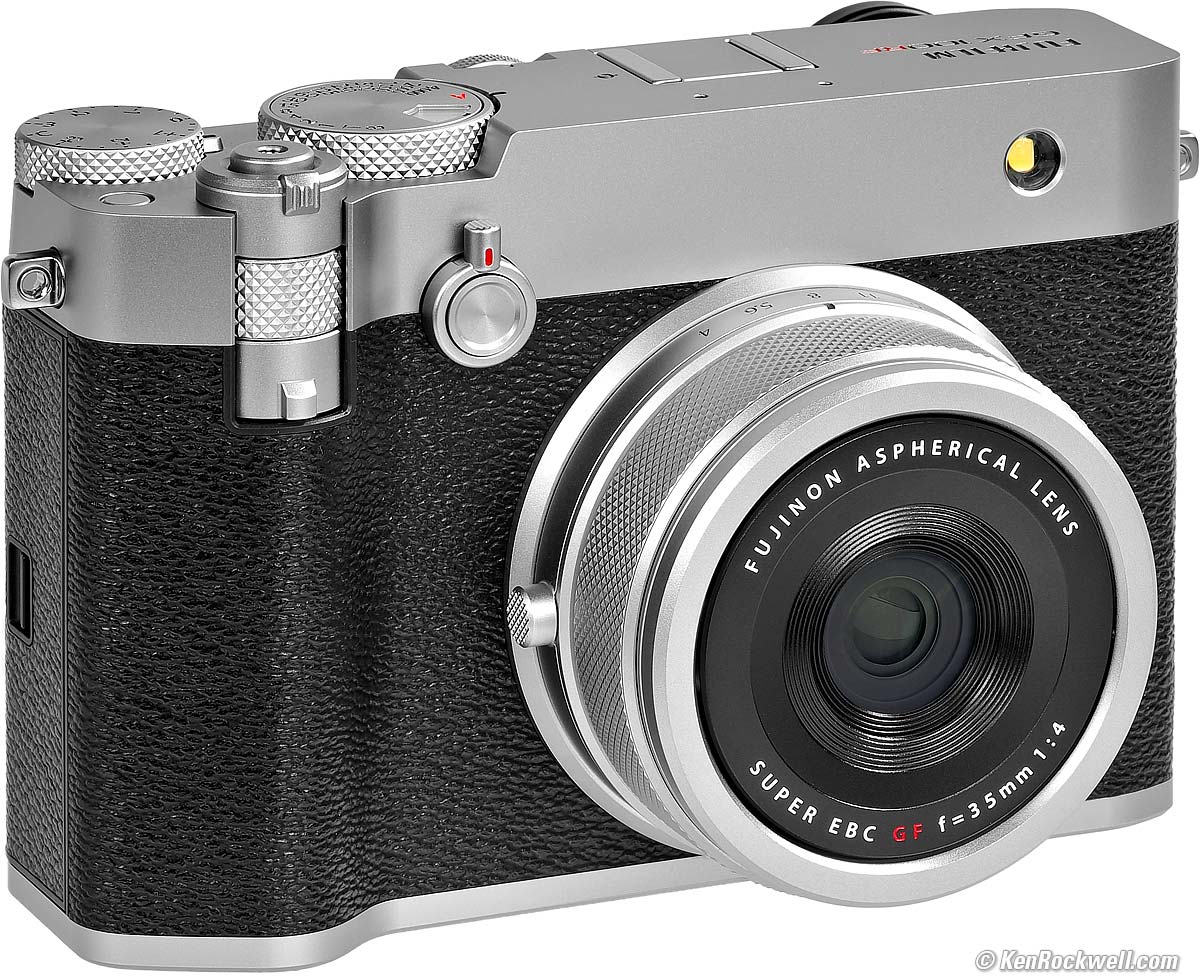
Fujifilm GFX100RF (takes 49mm filters only when used with the included adapter, 26.0 oz./736g as shown with battery and two SD cards, 28.7 oz./813g as deployed with included filter, hood, adapter, battery and two SD cards, 0.82'/0.25m close focus, 0.20× (0.16× eq.) macro ratio, $5,599.95). bigger.
I got my GFX100RF in silver (as shown) at B&H. It also comes in black, and it comes as kits with free goodies thrown in.
I'd also get mine at Adorama or at Amazon or get it used at eBay (How to Win at eBay), or get it used at KEH.
My junk-free, all-content website's biggest source of support is when you use those or any of these links to the places I use myself when you get anything, and it costs nothing more. I've bought from these places for over 100 combined years because they have the best service, the best selection, the best prices, and usually 100% cash-back returns for at least 30 days if you don't love your new goodies. As an Amazon Associate and eBay Partner Network Affiliate, I earn from qualifying purchases. Thanks for helping me help you! Ken.
June 2026 Better Pictures Fuji GFX System GF Lenses XF Lenses Canon Nikon HASSELBLAD LEICA Sony Zeiss All
Why Fixed Lenses Take Better Pictures
See also Fujifilm's own GFX100RF User's Guide.
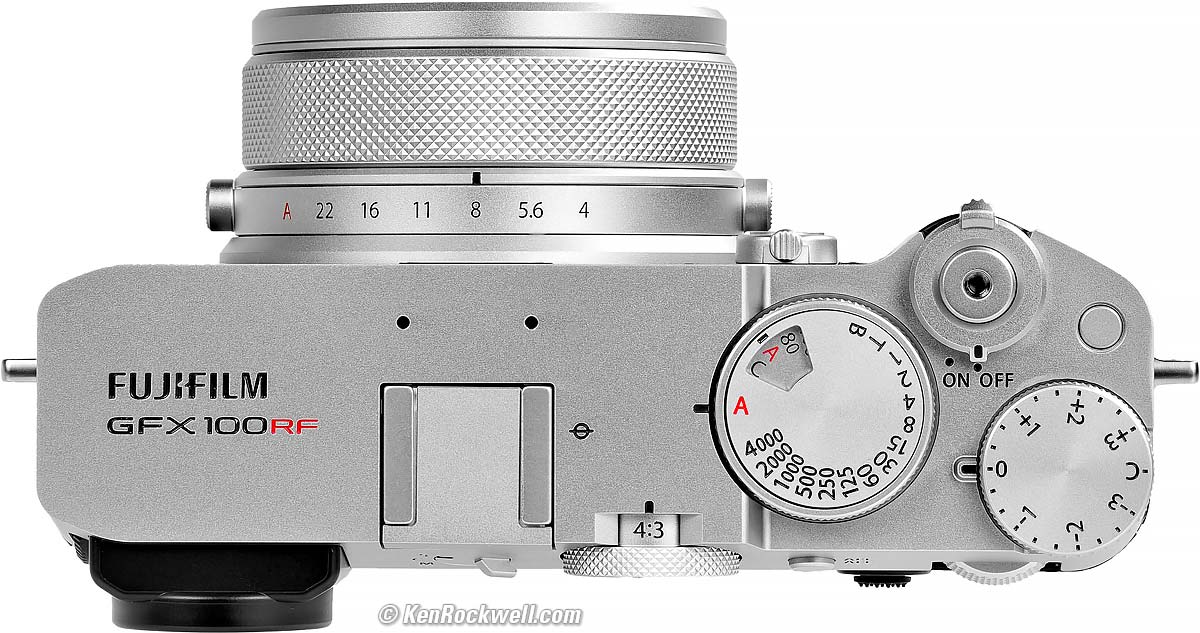
Fujifilm GFX100RF with Included Body-Colored Plastic Hot Shoe Cover. Here's how it looks uncovered. bigger.
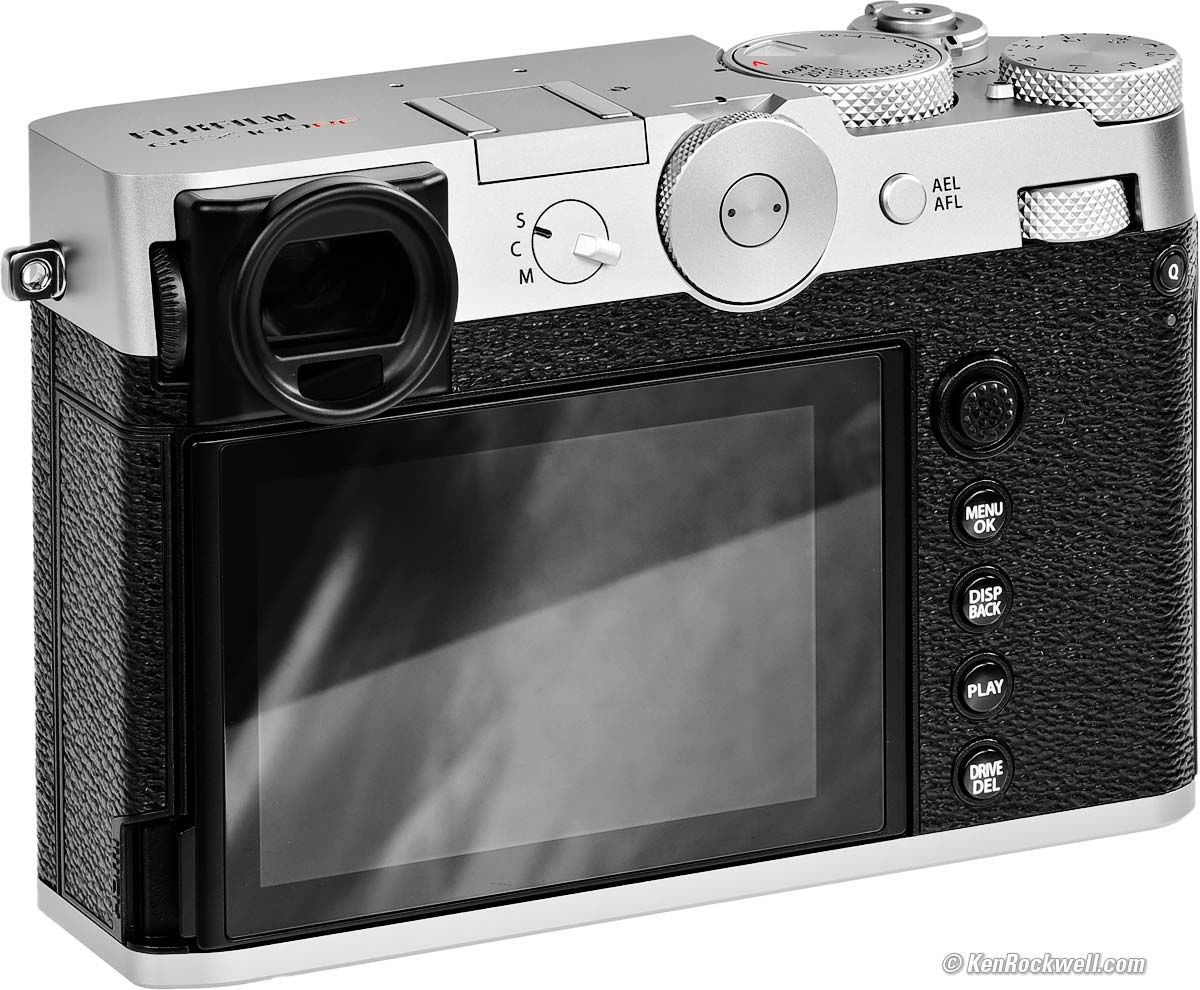
Fujifilm GFX100RF. The big dial between the Focus Mode (S/C/M) and the AEL/AFL button is the Cropping Selector. bigger.

Introduction GFX100RF Review top

I buy only from these approved sources. I can't vouch for ads below. |



This is my plain-English guide about how I use my GFX100RF. If you want more excruciating details, see also Fujifilm's own GFX100RF User's Guide.
This will make you an expert on the GFX100RF's controls and menus (maybe). It also includes a lot of tips, tricks, and the settings I prefer to use.
To get great photos you still need to get yourself to the right place at the right time and point the camera in the right direction, which is a lot harder than mastering the settings of the GFX100RF. Making a great photo involves timing, FARTing, knowing the critical basics of what makes a great photo and a whole lot more.
Please enjoy my articles on How to Make Great Photos if you haven't already. Cameras don't take pictures, people do. It's all about finding something cool, and then showing us exactly what's cool about it. This guide will help you become an expert at the GFX100RF, but most importantly you need to be able to see the picture in the first place.
If you find this free-to-read, super-high quality guide as helpful as a book you might have had to buy or a workshop you may have had to take, consider helping me write more of these with a gift of $5.00 — especially if you intend to make a printout of this copyrighted guide.
See also Fujifilm's own GFX100RF User's Guide.
Power & Charging GFX100RF Review top
I get the super battery life I do by setting MENU > Wrench > POWER MANAGEMENT > AUTO POWER OFF > 15 seconds, then PERFORMANCE > NORMAL, then SHOOTING STAND BY MODE > OFF and then AUTO POWER SAVE > OFF.
Feel free to set it as you like.
It charges via its USB-C jack. There is no external charger included, and you can buy one if you want to charge a second or third battery at the same time.
I get so much battery life that I don't bother with a spare NP-W235 battery.
I can be powered by USB, drawing about 4 watts, but it won't charge and run from USB at the same time. Be sure the camera is asleep or off to charge.
There's a green LED on the back while charging. It goes off when done. It blinks if there is a problem.
It charges at up to 10W (15V at 667 mA) from any USB-C source with a USB-C to USB-C cable.
It charges at up to 4W (5V @ 800 mA) from any USB-A source with a USB-A to USB-C cable.
Cards GFX100RF Review top
Thanks goodness all kinds of SD cards work fine. There's no need for exotic cards.
I prefer to set my second card to Backup.
If you do, it will say NO MEDIA and won't record at all if one slot is empty. This defeats the purpose of backup if it dies whenever either card fills or fails. It does this regardless of the setting of MENU > Wrench > button/dial setting > shoot without card.
Straps GFX100RF Review top
I don't use the hipster strap that comes with the GFX100RF.
I prefer my genuine LEICA 14 312 Strap, which is discontinued and only sold used if you know How to Win at eBay.
The 14 312 is a German engineering marvel. It really is Made in Germany. I bought mine back around 2007 and it's still like new!
The LEICA 14312 strap has quite a few benefits:
1.) Ingenious design that allows the strap to be attached and removed immediately without tools and without scratching the camera. This is great for me, since I'm constantly being loaned new cameras to test, and then need to remove the straps when I photograph the cameras to illustrate my reviews.
2.) Ingenuous design that incorporates rash guards to prevent brassing or other wear to the camera from extended use.
3.) Narrow strap materiel doesn't get in your way as you hold the camera to your eyes.
4.) Perfect width and grip permanently fixed shoulder pad. It's not too big and not too small. It's not too slippery and not too grippy. It feels perfect for light cameras.
5.) Much more supple than other strap material. The strap lays across your hand like a soft shirt; not at all like most other stiffer straps.
6.) Ingenious design that has no loose strap ends to poke you in the eye or chafe your hands.
7.) Ingenious design that can't possibly loosen or untie itself. The strap is sewn back into itself.
8.) Ingenious design that makes it fast and easy to adjust the length.
9.) Ingenious design that keeps the strap at the length you set it.
10.) No junk hanging off the strap or your camera: it's just a strap, a small pad, and ingenious fixation devices on each end.
11.) Even if you break one of the plastic buckles, no problem: they were just strap-end keepers. If one breaks, no big deal, since the clips at each end are what hold the strap.
12.) Even if you break one of the plastic clips at each end, no big deal, since the camera will be held by the plastic buckle in the middle of each side.
As you can see, the brilliant simplicity of this strap means you have to break at least two different things before you drop a camera.
Caps, Filter Adapter & Hood GFX100RF Review top
Thank goodness Fuji includes all the hoods, adapters and filters for free with our GFX100RF. There's no need to have to go out and buy anything.
Fuji promotes this camera in its "Beauty" mode as seen here:
Beauty Mode: Fujifilm GFX100RF. bigger.
In this mode the lens is completely unprotected from anything because the front trim ring is just a trim ring: you cannot attach any filters or a hood to it.
It looks pretty in pictures, but you don't want to carry and shoot this camera all day like this.
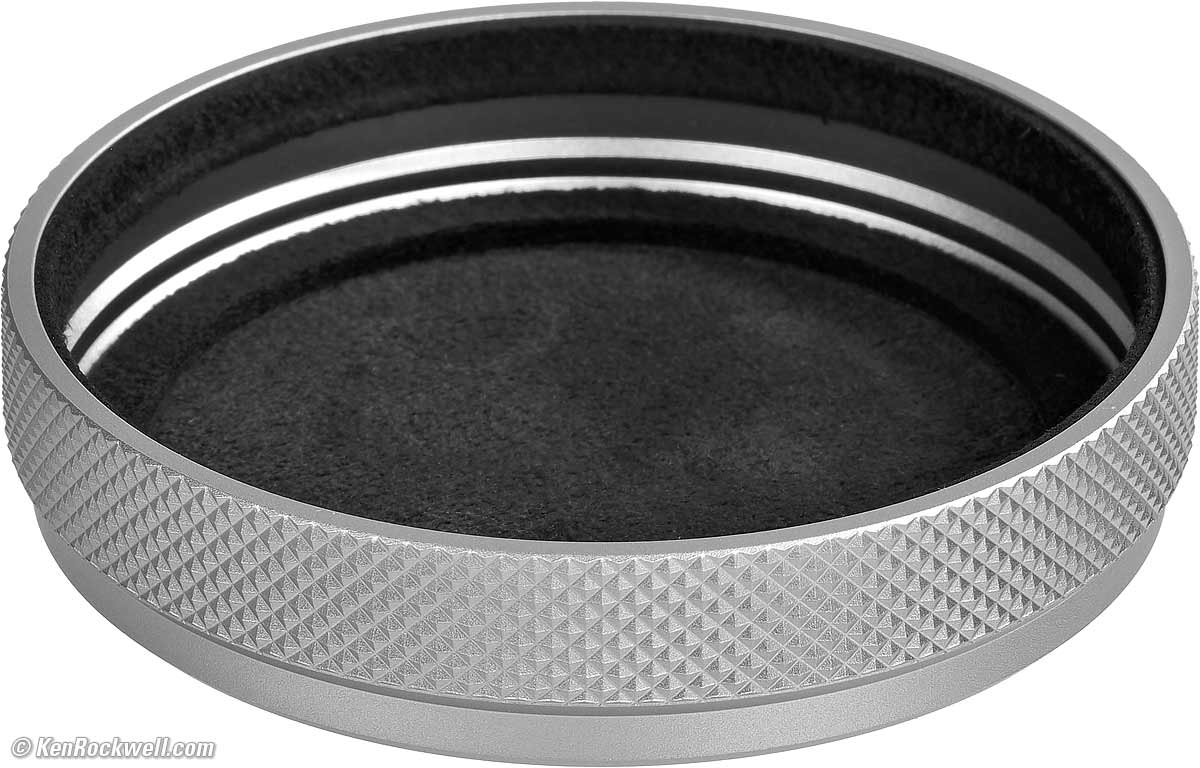
Fuji includes a wonderful felt-lined solid billet-aluminum cap that works great when the camera is in Beauty Mode:
|
|
Solid Billet Aluminum Lens Cap, Fujifilm GFX100RF. bigger. |
Felt Lining inside Lens Cap, Fujifilm GFX100RF. bigger. |
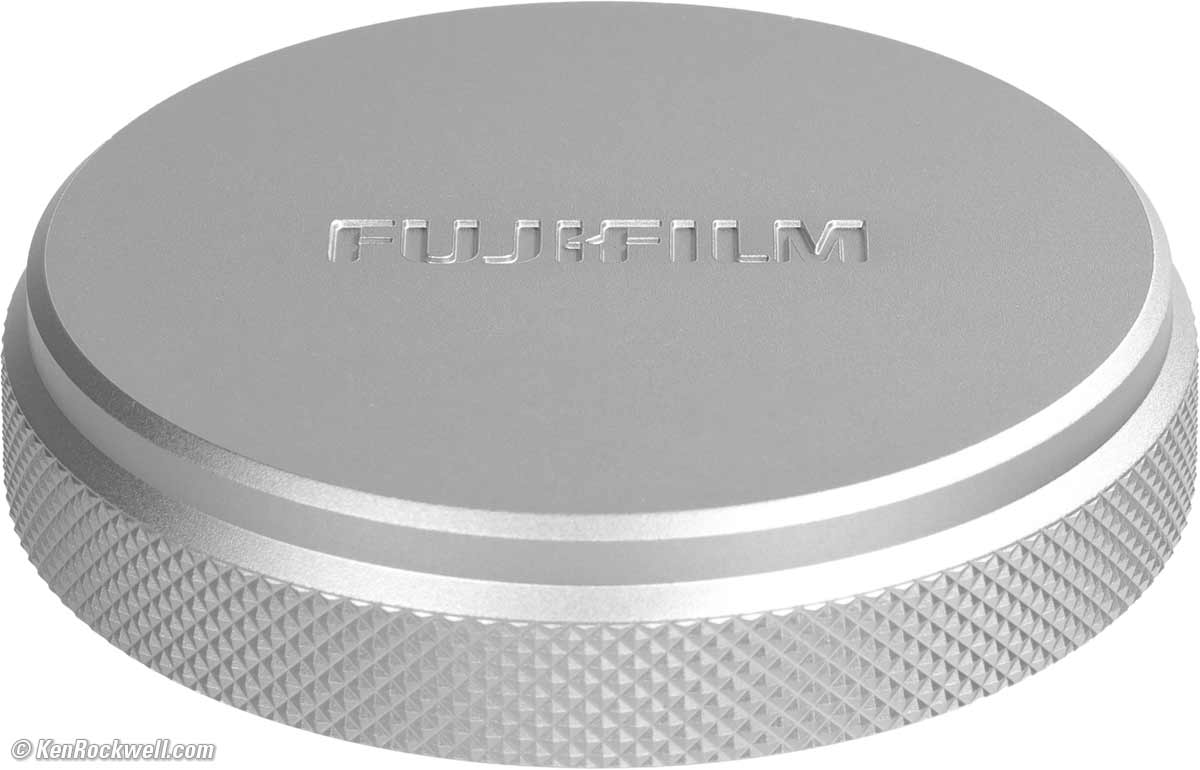
Here's how it looks with the cap attached:
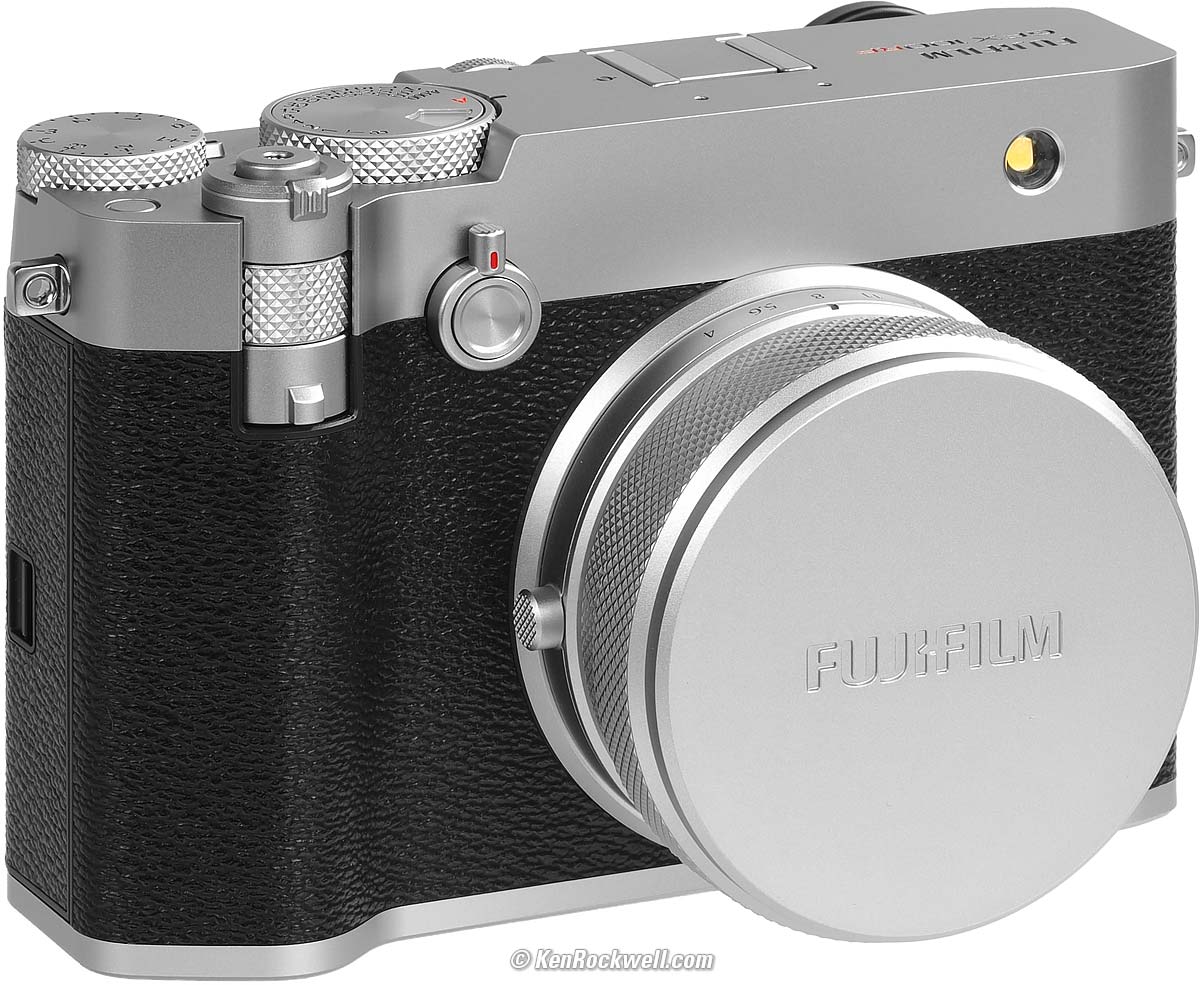
Capped Fujifilm GFX100RF. bigger.
Sadly this cap will not fit when you use the adapter shown below to use a filter or hood, so leave it and the trim ring in the box for resale time.
Here's how we make the GFX100RF practical for real-world shooting.
First we unscrew the decorative trim ring to reveal the reverse (male) 57mm (!?!) threads underneath:
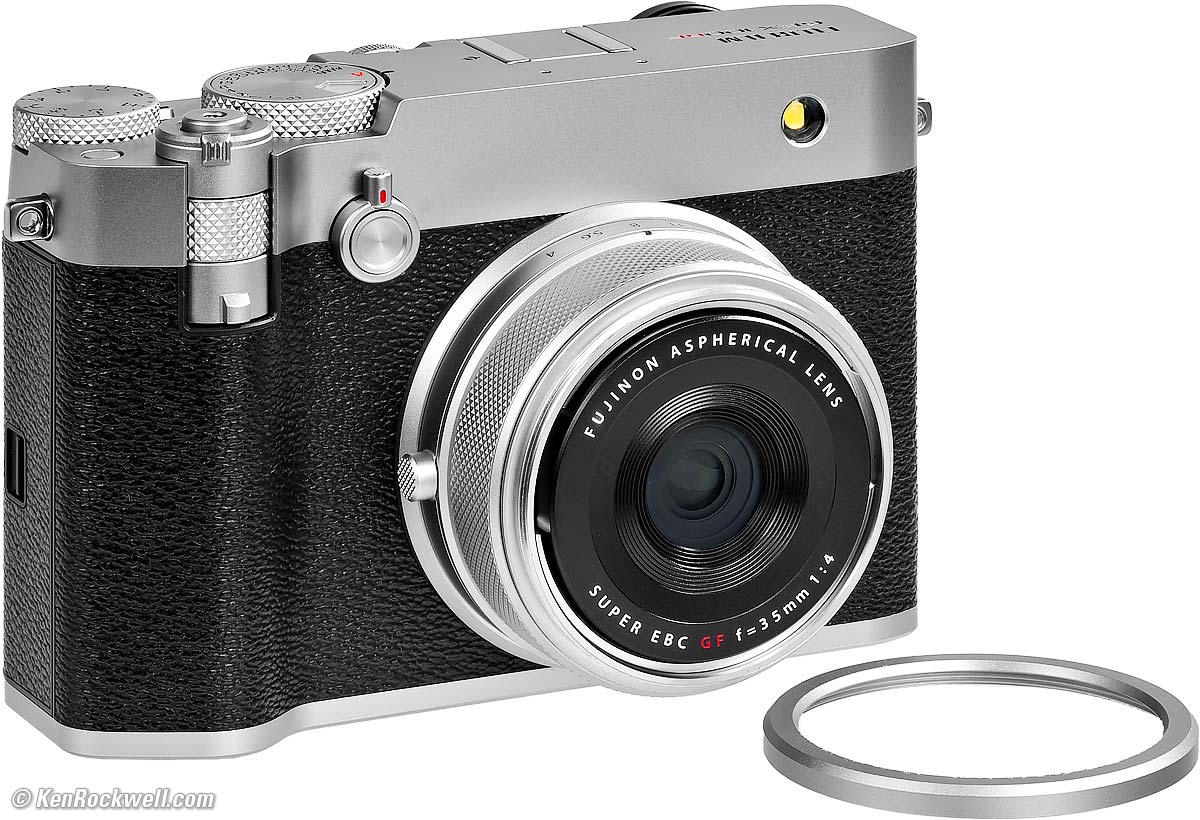
Trim Ring Removed to Show Male 57mm Threads, Fujifilm GFX100RF. bigger.
We now screw this keyed adapter into the front of the lens over the bizarre reverse 57mm threads. Be careful not to hit the lens' optics with the lugs that ensure it mounts properly:
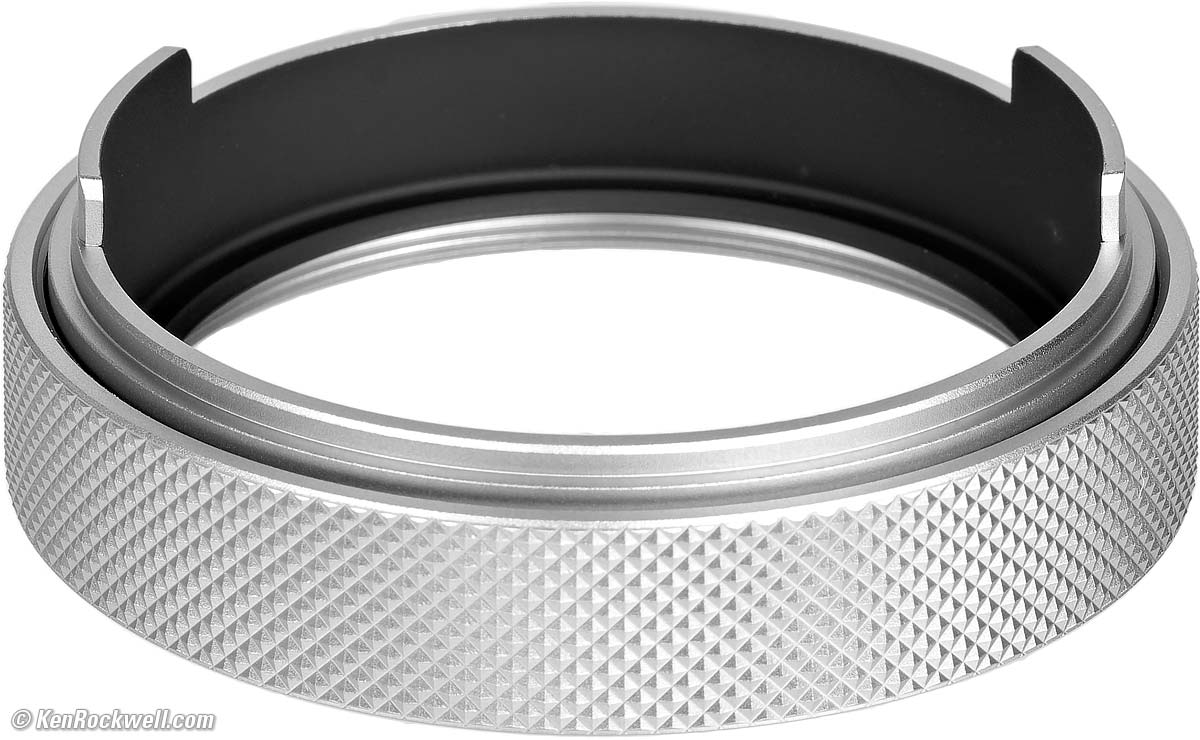
Included Filter & Hood Adapter, Fujifilm GFX100RF. bigger.
Our camera is uglier with this adapter in place.
The front knurled ring is simply the threaded attachment for the adapter; it is not any sort of control ring:
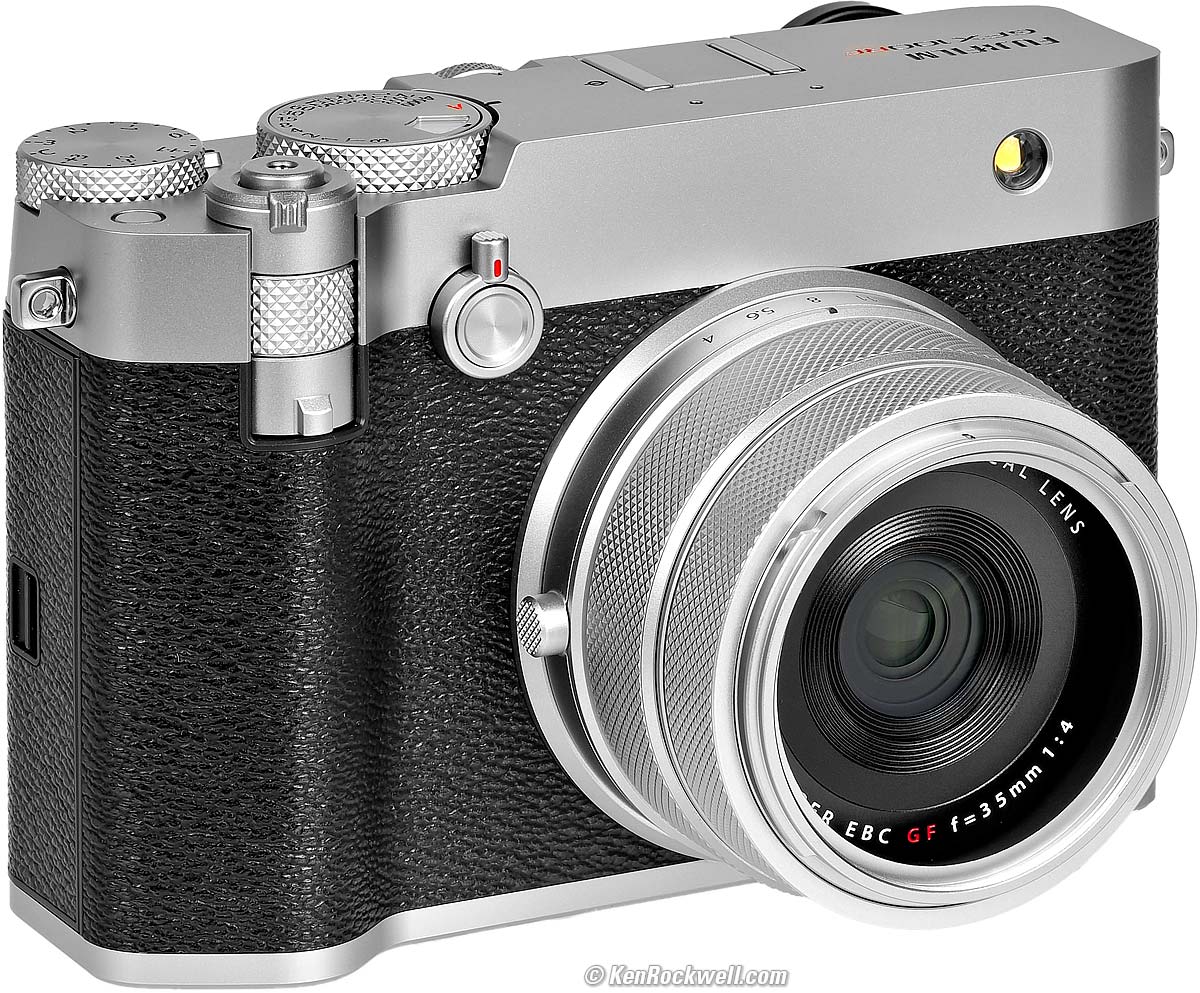
Fujifilm GFX100RF with Included Filter & Hood Adapter. bigger.
Now attach the included Fujifilm PRF-49S Protective Filter:
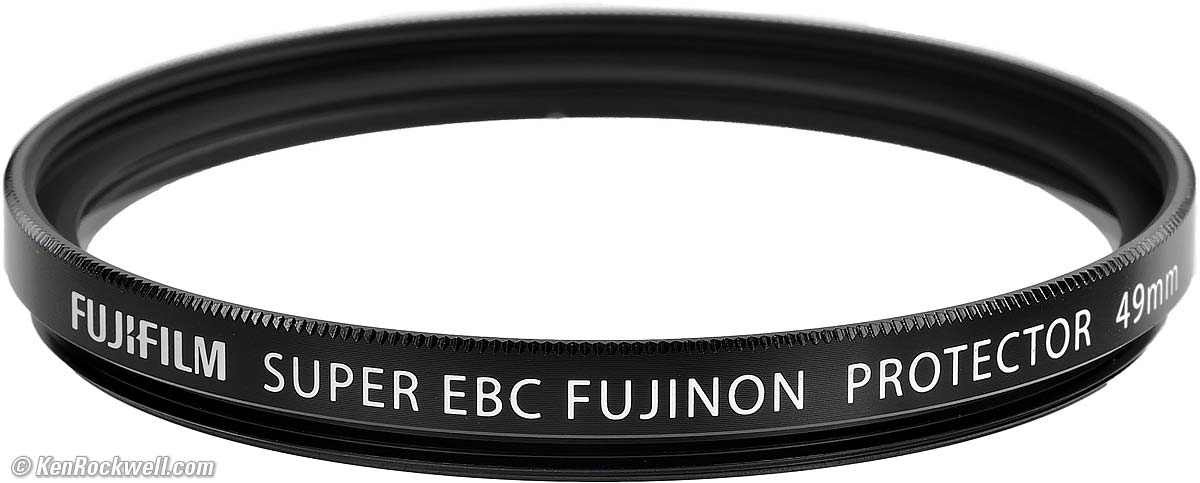
Included Fujifilm PRF-49S Protective Filter. bigger.
Attach the included metal bayonet hood and you're ready to roll:
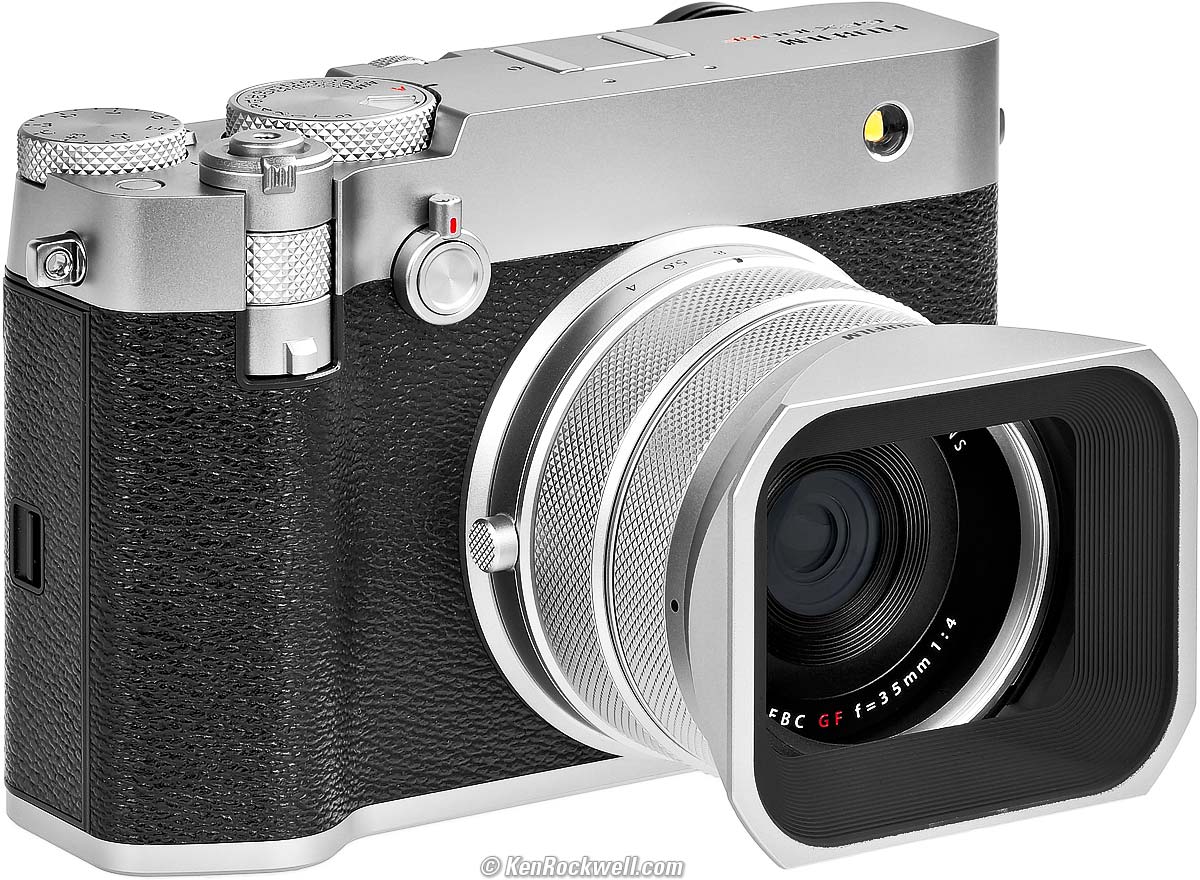
Shooting Mode: Fujifilm GFX100RF. bigger.
Fuji includes a plastic flap cap that slides over the hood, just like the cap for the LEICA SUPER-ELMAR-M 21mm f/3.4 ASPH:
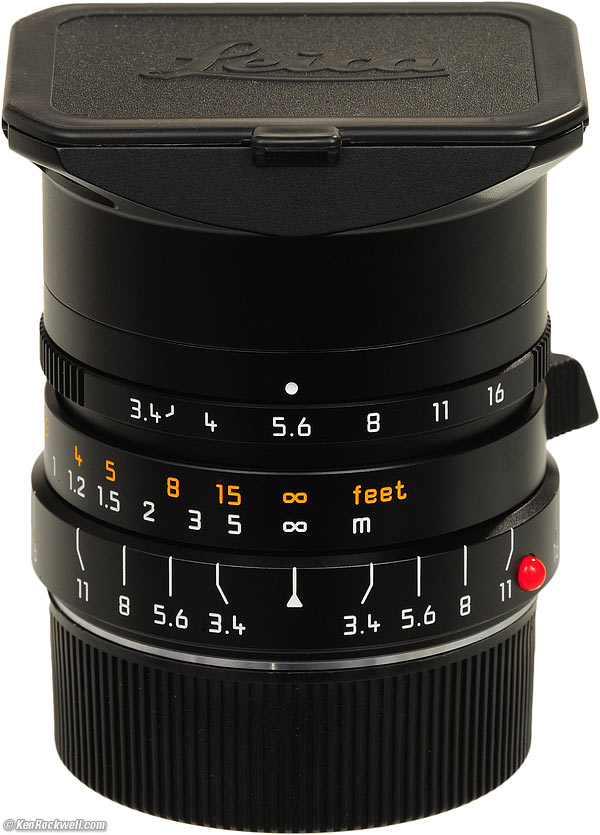
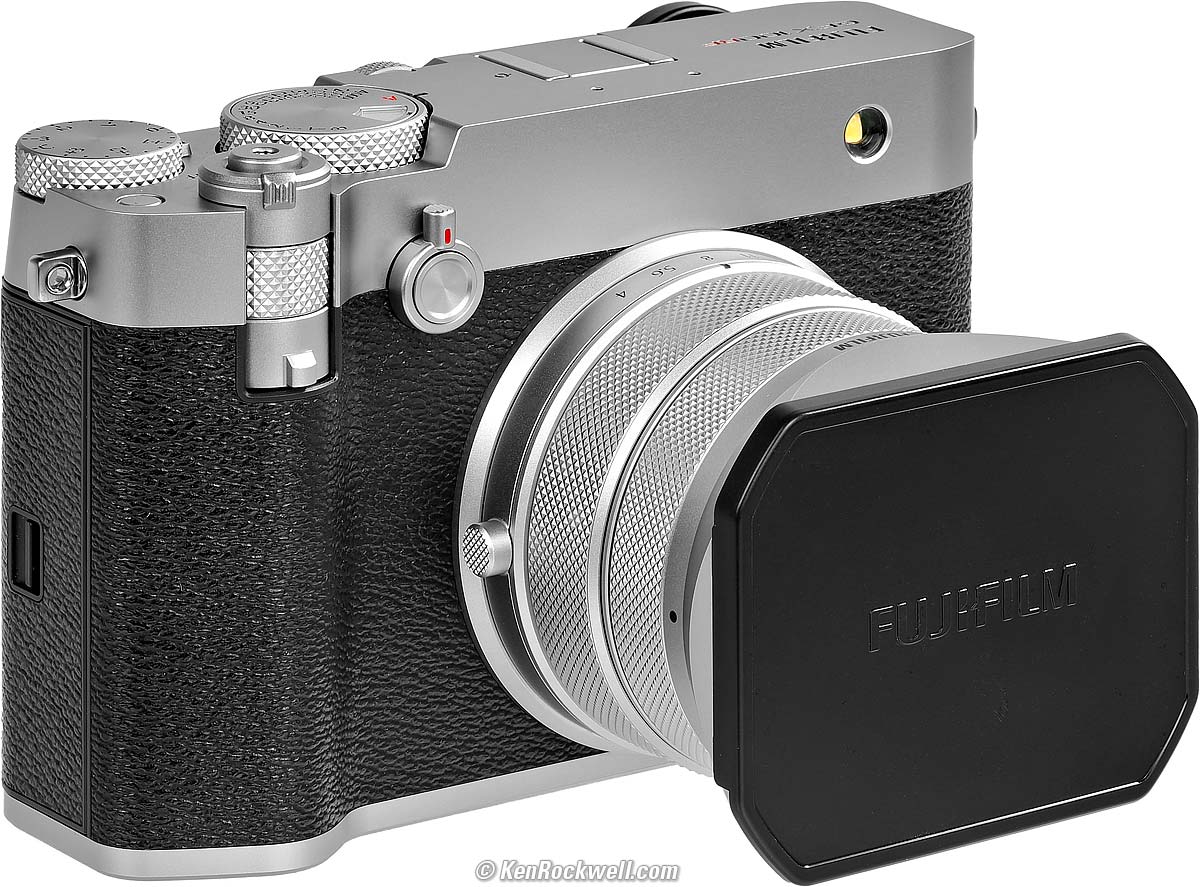
Fujifilm GFX100RF. bigger.
I never use this cap and leave it in my box.
Menus GFX100RF Review top
I HATE the menu system, but others are just fine with it.
Remember to press DISP/BACK after every setting, otherwise they may be ignored.
Getting to the Playback Menu GFX100RF Review top
It's well hidden.
You only can find this menu while you're playing an image.
Assigning Button & Dial Functions GFX100RF Review top
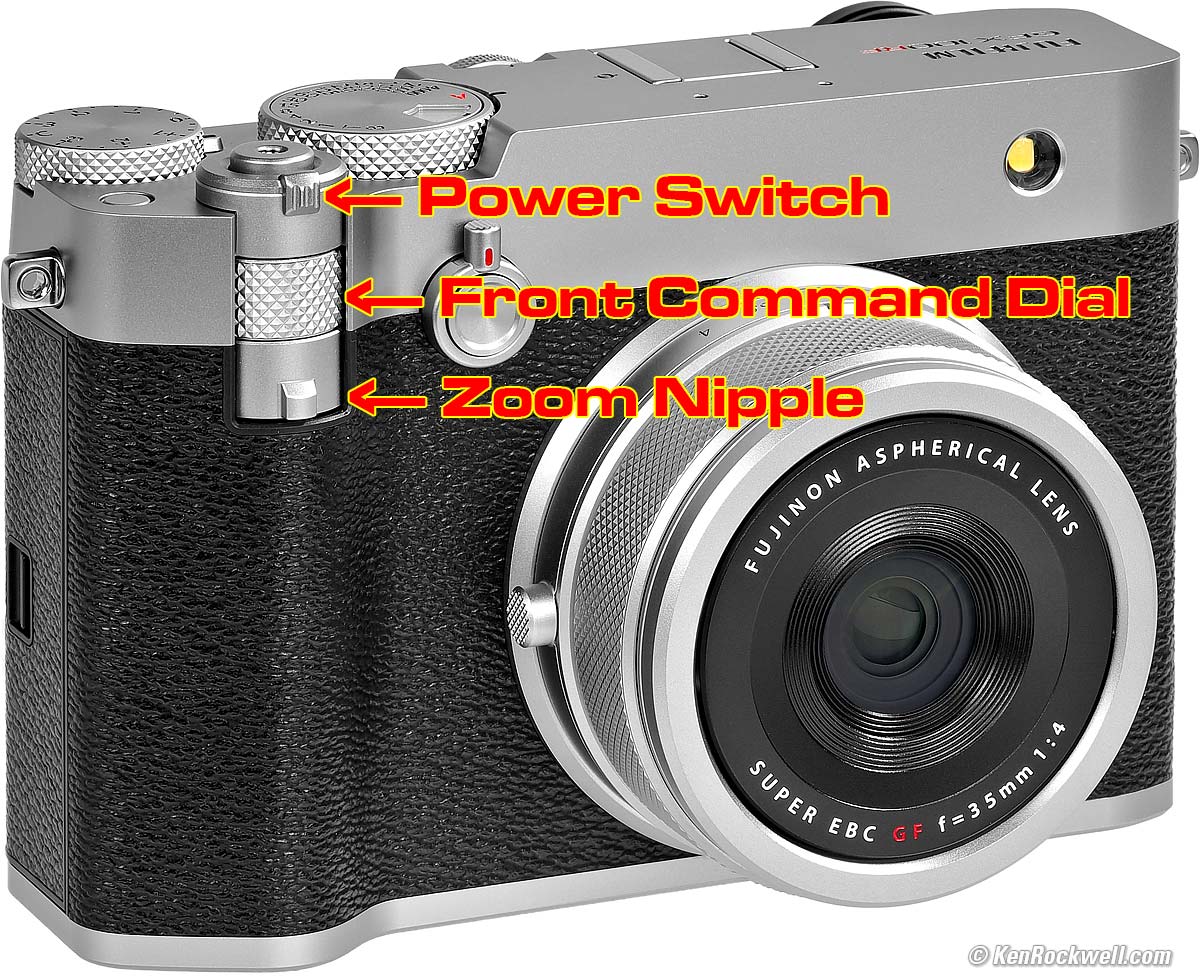
Fujifilm GFX100RF. bigger.
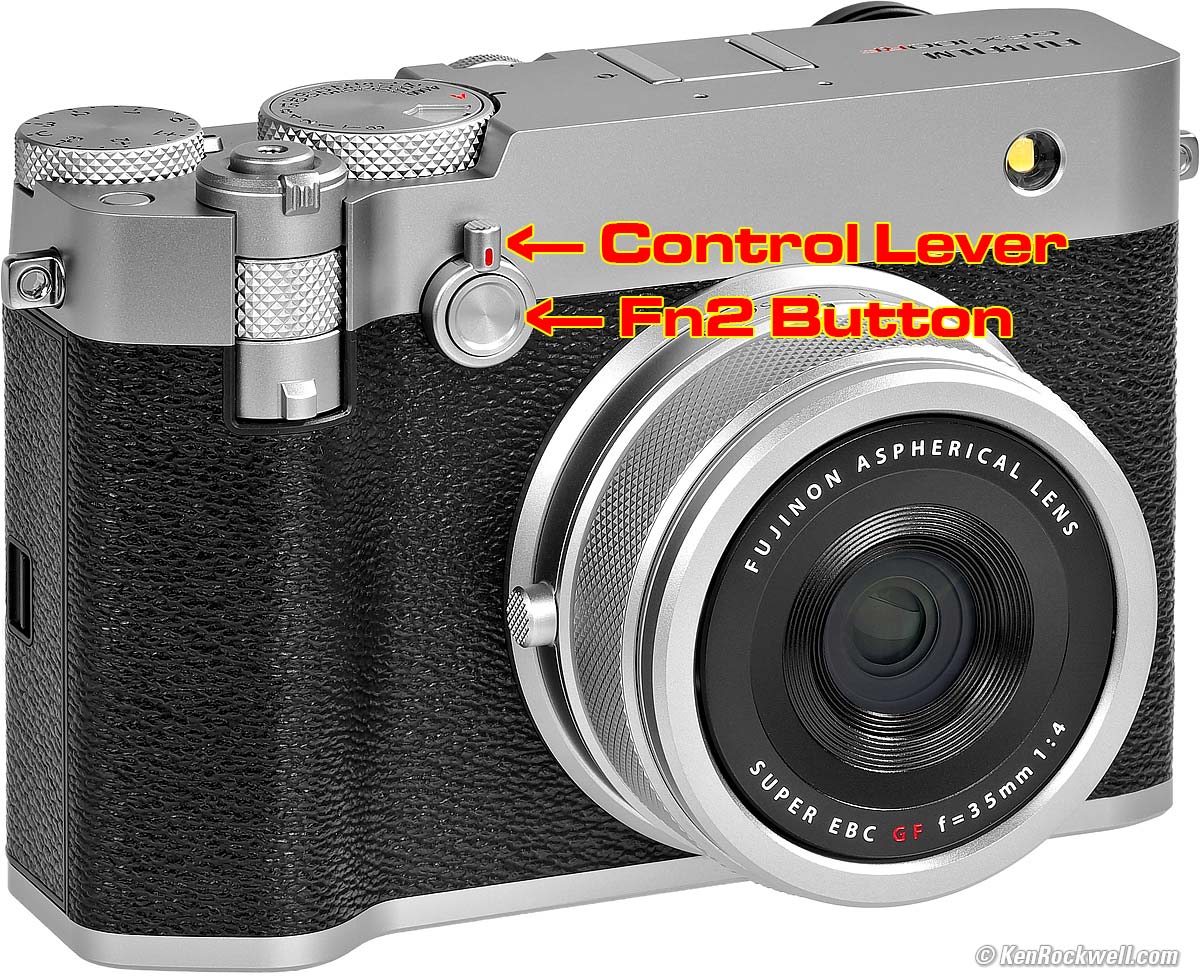
Fujifilm GFX100RF. bigger.
These are set at MENU > WRENCH > BUTTON / DIAL SETTING.
These trick modes make it easier:
HINT: Hold DISP for a few seconds to set many of the buttons and levers.
HINT: Press-in the rear nubbin for a few seconds to set what it does.
HINT: Press-in the rear command dial while shooting to activate whatever function you've assigned for it to set.
Digital Zoom & Teleconverter GFX100RF Review top
Fujifilm GFX100RF. bigger.
This is the little nipple lever under the front command dial.
Moving it left or right selects different stepped levels of zoom, which are simply cropping the images.
Regardless of your Image Size setting, it reverts to LARGE whenever you zoom-in from the widest default option.
Even though Image Size reverts to LARGE, your Aspect Ratio settings still work.
The options are:
35mm (28mm eq.) native uncropped.
45mm (36mm eq.) crop.
63mm (50mm eq.) crop.
80mm (63mm eq.) crop.
Regardless of the Image Size selected (SMALL, MEDIUM or LARGE), the camera reverts to LARGE for any of the 45, 63 or 80mm crops.
Focus Mode (S / C / M) Lever GFX100RF Review top
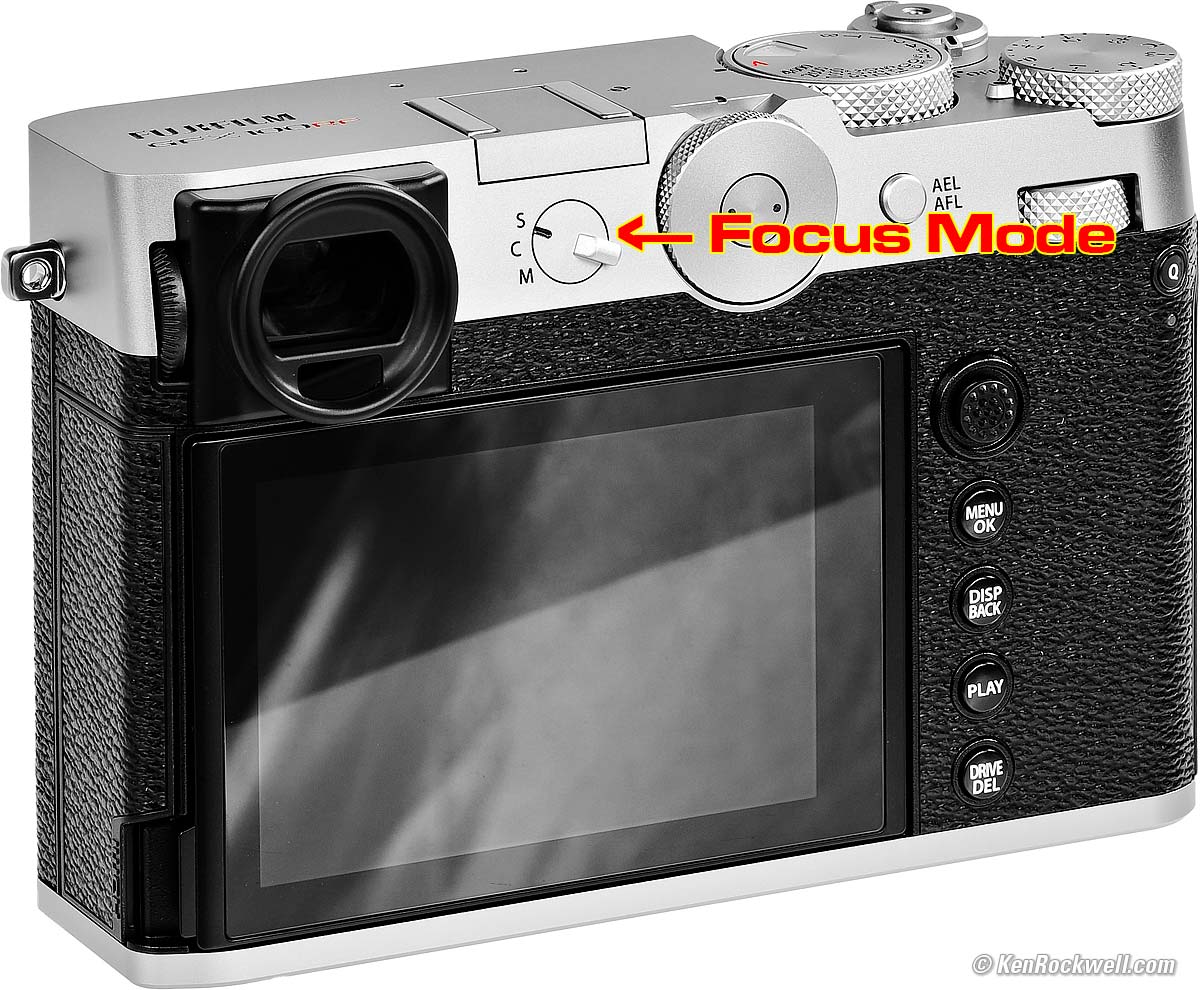
Fujifilm GFX100RF. bigger.
This is the S C M lever near the finder eyepiece:
S: Single AF and lock.
C: Continuous AF. I don't use this, the GFX100RF seems uncomfortable trying to track focus.
M: Manual focus. Turn the ring.
Aspect Ratio Cropping Dial GFX100RF Review top
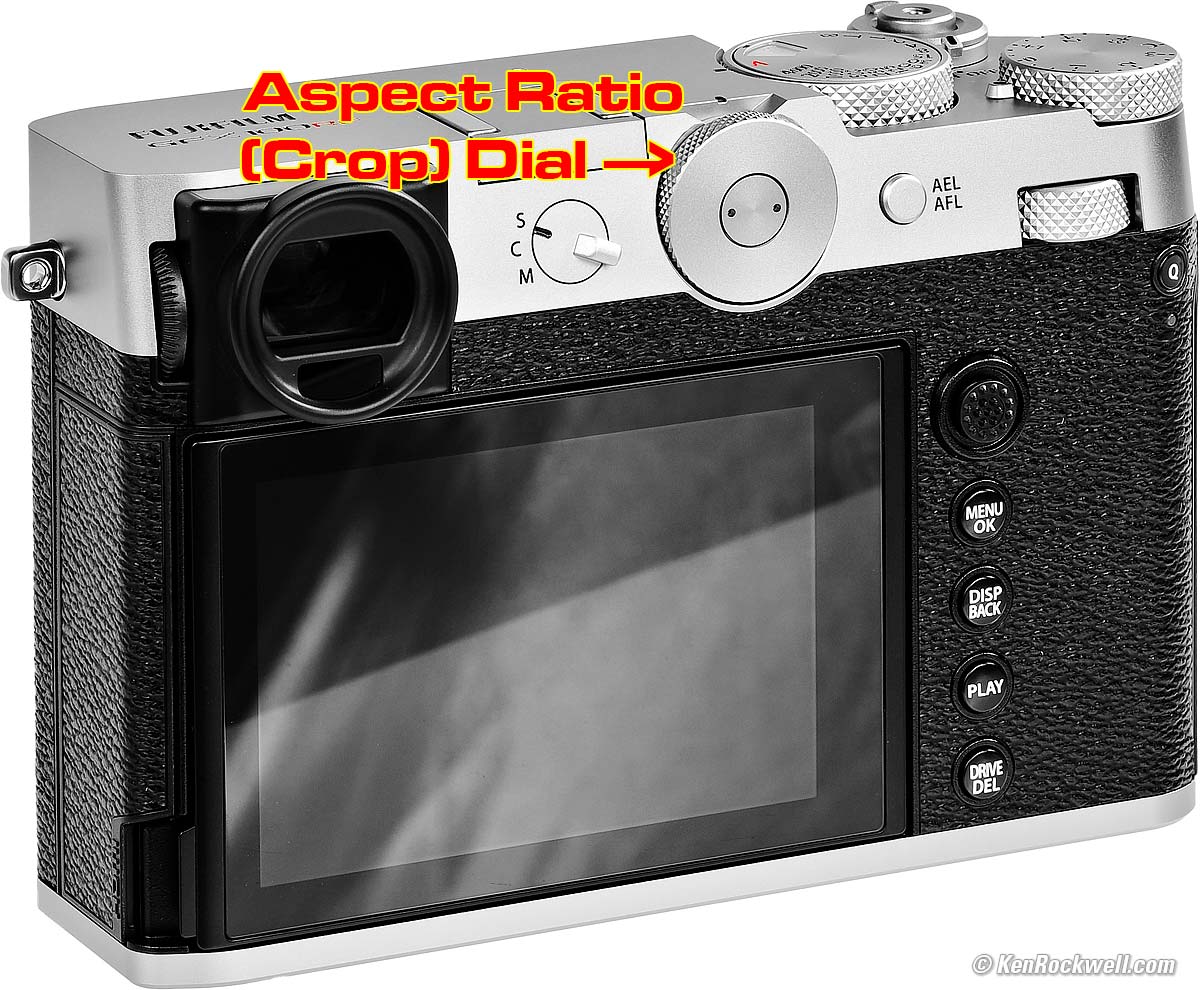
Fujifilm GFX100RF. bigger.
Just turn the big round dial on the top center back to select just about every image shape imaginable.
The "C" position means you can set it from the camera menus.
HINT: Set the C position to your favorite, and now you can swap between it and the adjacent 4:3 or 4:5 settings in one click!
I set my C position to square so one click gets me between square and 4:3. Love it!
Setting ISO GFX100RF Review top
We set the ISO either with its dedicated top dial, or with the front command dial when the top ISO dial is set to C.
Feel free to fiddle with the top ISO dial, but it's missing the extended settings and a couple of the Auto ISO settings, so I think it's bogus.
I set my ISO dial to C so that I can set every ISO with the front command dial instead.
My GFX100RF sometimes ignores my front dial and then I fiddle with the other settings, like the rear dial (??!!??) to bring it back. Sorry, I said the menu system was difficult. If you get stuck, also look for the option that lets you change the function of the front command dial. It's a function with a swap-dials icon that you can assign to a button.
There is no menu to set ISO, only to alter the settings of the Auto ISO settings.
Getting Extended ISOs GFX100RF Review top
You get only ISO 80 ~ 12,800 with the electronic shutter. The extended ISOs only work with the mechanical shutter.
To get from ISO 40(L) to ISO 102,400 (H3) you need to set Menu > Camera > Shutter type > Mechanical shutter.
It has to be the mechanical setting. You won't get the extended ISOs with the Mechanical+Electronic option, even if it selects the Mechanical option.
Setting Exposure Modes GFX100RF Review top
There are no menu options or mode dials to let us set exposure modes.
Instead, it's much simpler to set these using the aperture and shutter speed dials themselves.
Set either of the shutter speed dial or aperture ring to A, and then the shutter speed or aperture is set automatically.
Set both to A and both are set automatically: Program mode.
In other words:
Set the shutter speed dial and aperture rings to any black values and you're in manual exposure mode.
Set the aperture ring to A for Shutter-preferred mode. Easy!
Set the shutter speed dial to A for Aperture-preferred mode. Easy!
Set shutter speed dial and aperture ring both to A and you're in Program mode. Easy-peasy! There is no old-fashioned mode dial to have to set.
Getting the Full Range of Shutter Speeds & Long Exposures GFX100RF Review top
The shutter dial only covers full stops from 1 second to 1/4,000, as well as T and B.
To get all the third-stops as well as the full range from 1/16,000 to an hour, set the shutter dial to T and use the rear dial to select the speed.
The leaf (mechanical) shutter only goes to 1/2,000 at apertures larger than f/8. To get to 1/4,000 we need to be at f/8 or smaller.
To shoot above these speeds, as fast as 1/16,000, use the electronic shutter, set at MENU > CAMERA page 2/2 > SHUTTER TYPE.
The M+E mode magically swaps from mechanical to electronic to get to the faster speeds.
The GFX100RF is relatively unique in that manual exposure times can be set all the way out to an hour, by default. Yay!
To set these, turn the shutter dial to T and turn the rear dial. You can program other dials to do this if you prefer.
However, even in Bulb you may not make an exposure longer than an hour.
Color Histograms GFX100RF Review top
Color histograms are required if shooting in color, but most cameras don't show them until after you've made your shot and play it back — when it's too late.
Monochrome histograms are useless if you have any color saturation.
I set my Fn1 button (the unmarked one next to the shutter button) to "Histogram" and now tapping it gives me a live color histogram in Live View as I'm shooting, easy-peasy!
Film Simulations GFX100RF Review top
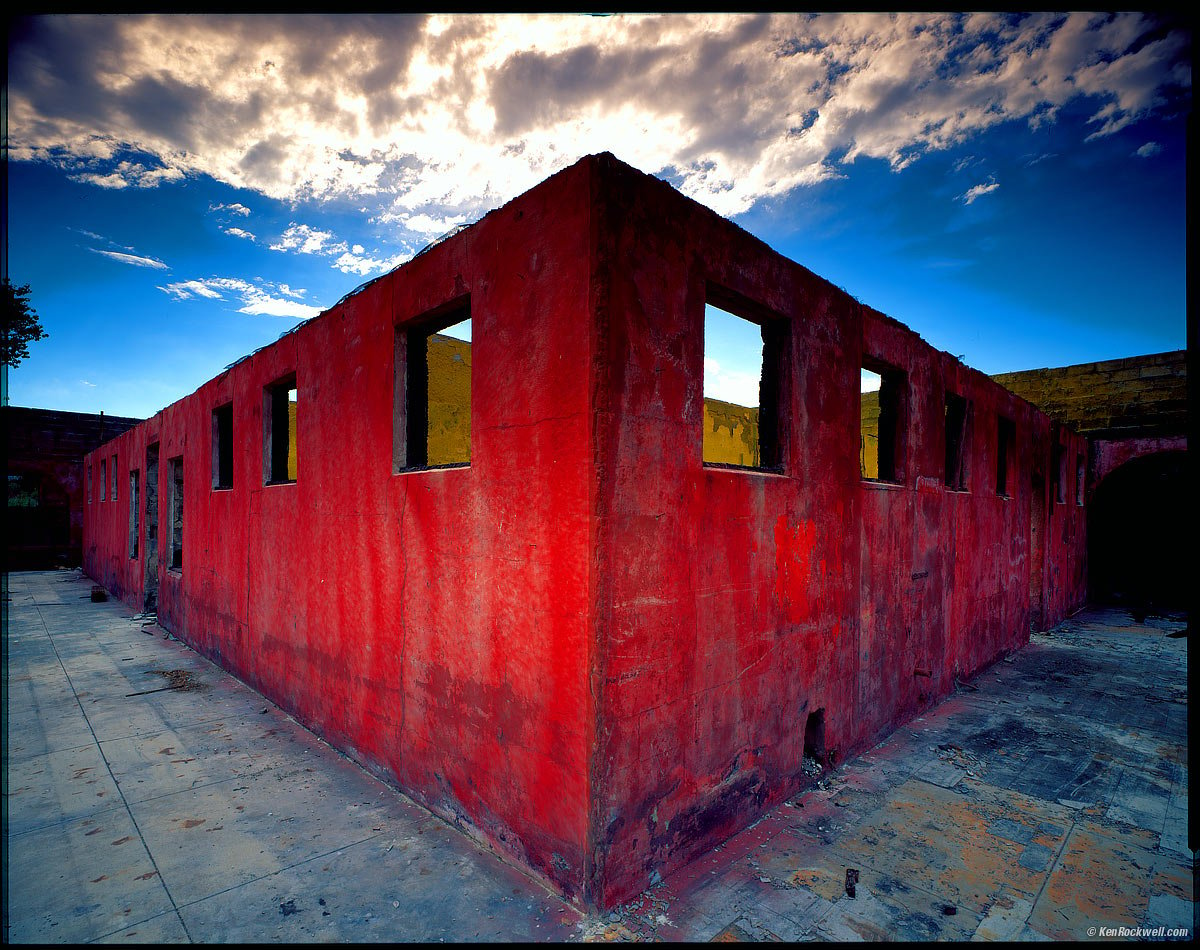
Ruin, San Diego County, 28 July, 1996. Shot on real 4 × 5"Velvia, not a simulation. bigger. tech details.
I don't like film simulations and don't use them. I leave mine set to STD and then set COLOR to +4 and SHARP to +4 and I'm done.
Velvia and the other options do not look like actually shooting that film. These simulations are poor simulations that look like bad scans from those films, not the results you'd get by actually shooting those films properly.
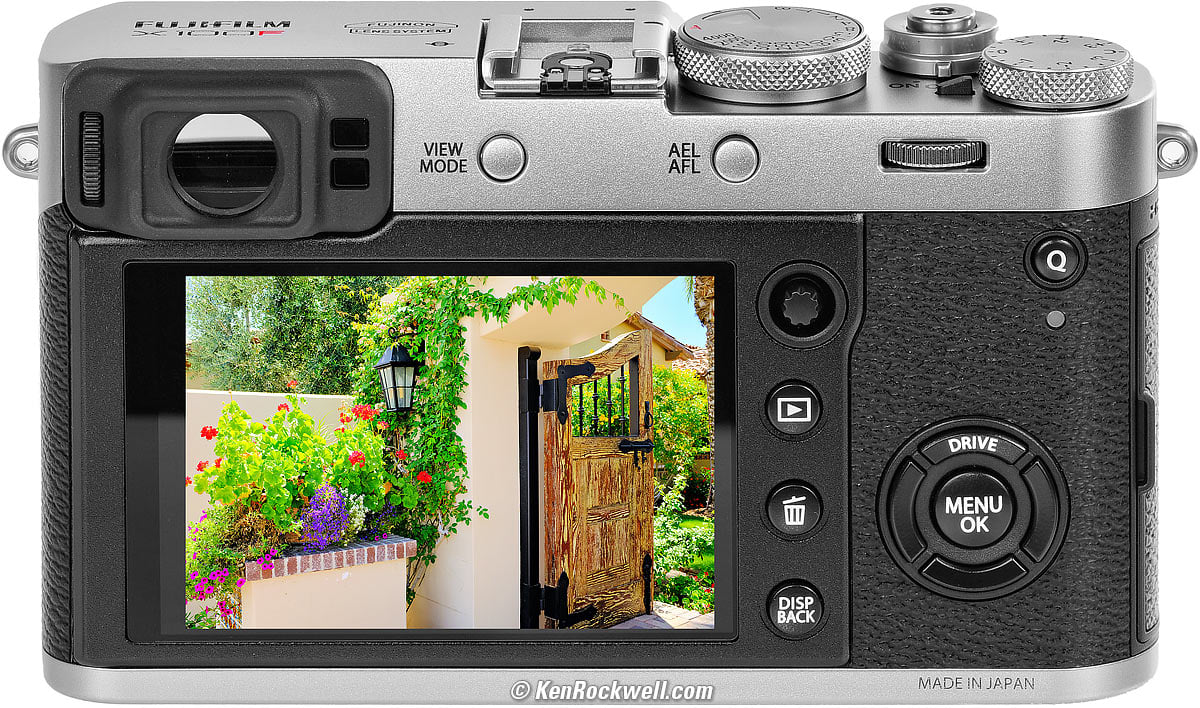
Here's what they look like in the X100F, the best of the X100 series.
HINT: The Color Chrome Effect adds its effect to whatever film simulation you've selected; it's not just another film simulation.
Flash GFX100RF Review top
The GFX100RF ships with a solid-alloy hot shoe cover. Be sure to remove it before attaching your flash. I leave mine in my box so I don't lose it.
Here are the contacts with the cover removed:
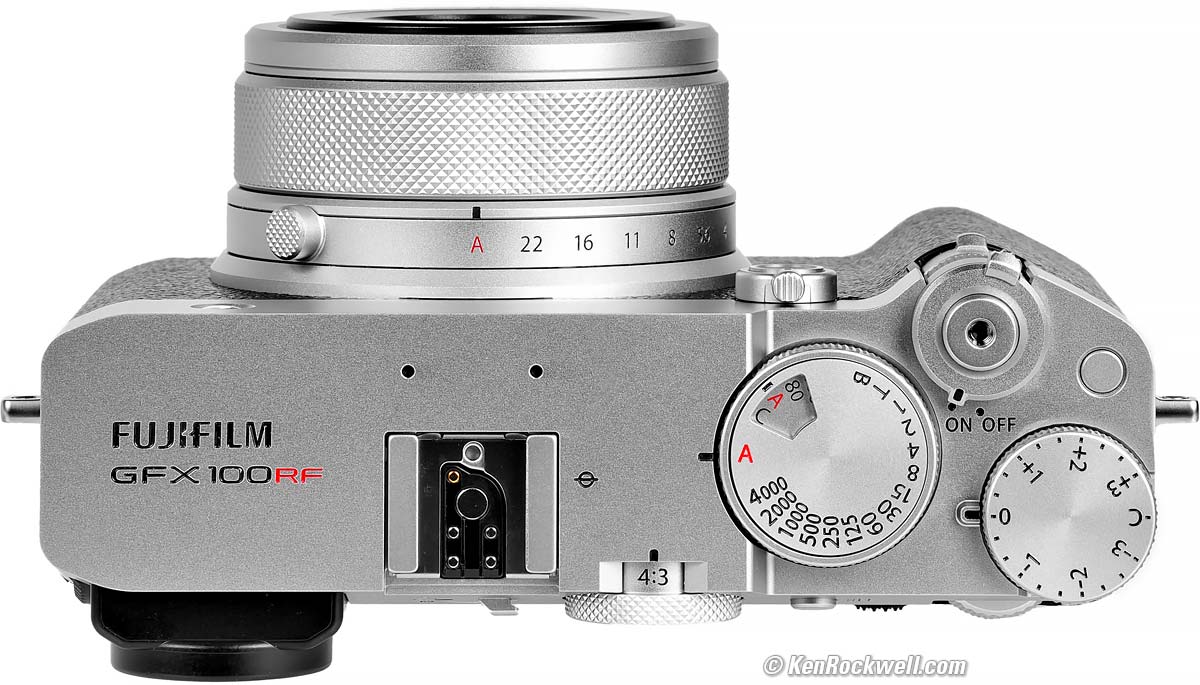
Fujifilm GFX100RF. bigger.
I always use a flash for fill flash when photographing people in strong sunlight.
I get useful TTL fill flash in sunlight at 75 feet (23 meters) at 1/2,000 sync even with my small, full-featured on-camera Godox iT32 flash with X5F module for Fuji (X5 modules also come for Canon (X5C), for Nikon (X5N), for Sony (X5S), für LEICA (X5L) and for Olympus, OM SYSTEM and Panasonic (X5O)).
I rarely use flash indoors; if I do, I gel (filter) the flash with an orange (Full CTO) gel filter to match tungsten or green to match fluorescent lighting, and then set the camera to that same manual white balance.
I use a light orange (half CTO) gel if using fill flash at sunset.
Video GFX100RF Review top
To shoot video, select it as a drive mode with the DRIVE / DEL button.
Obvious — Not!
Mic or Remote Control Jack? GFX100RF Review top
There is one shared 3.5mm jack either for a passive stereo mic or line input (no plug-in power) OR a remote control input.
Select this at Menu > ??? > Mic/Remote release.
Why ??? ? Because the menu system is so bad that while I wrote down the name of the menu entry, I can't find it anywhere again now that I'm writing up this guide. Good luck!
Battery Percentage Readout GFX100RF Review top
There is a percentage indication, but it is very well hidden.
The only way to see it is only on the rear LCD, only when the camera is ready to shoot (not on playback and not in menus), and only in the one data screen that comes up as you press DISP/BACK to change the screen functions.
When you get to that pure data screen (no live-view image), the battery percentage is in the top right-hand corner.
Playback GFX100RF Review top
HINT: To get Image Review, select ON at Menu > Wrench > Screen settings > Image disp.
The Image Review option locks us out of other images, as well as seeing its data. All it does it let us check focus, not really review it. Therefore I don't use this option.
HINT: To get it to zoom-in to the selected AF area with one-click, set MENU > WRENCH > SCREEN SET UP page 3/4 > PLAYBACK MAGNIFICAITON > Actual size from focus point (or set it as 2, 4 or 8×, but those always start magnifying from the center).
HINT: To swap between CARD 1 and CARD 2 for playback, hold the PLAY button a few seconds.
HINT: Pressing-in the rear command dial often will zoom-into a playback image.
Voice Memos GFX100RF Review top
You only can record these, or find the Playback menu, while you're playing an image.
Activate Voice Memos by playing an image and then setting MENU > Playback > Voice Menu Settings > ON.
Once activated, press and hold the the front Fn2 button (the one inside the lever) for three seconds while playing an image, after which it will start recording as long as you keep holding the button for up to 30 seconds.
It's always the Fn2 button, you can't reset this. The Fn2 button does as you program while shooting, and swaps to Voice Memos on playback. Cool!
Touch Functions 🤮 GFX100RF Review top
I HATE these because they are much clumsier than the 4-way controller that most older Fujis and every digital camera used to have.
Here's a video on them. Good luck:
That's it!
Return to GFX100RF Review.
This 100% all-content, junk-free website's biggest source of support is when you use those or any of these links to my personally approved sources I've used myself for way over 100 combined years when you get anything, regardless of the country in which you live — but I receive nothing for my efforts if you take the chance of getting it elsewhere. Fujifilm does not seal its boxes in any way, so never buy at retail or any other source not on my personally approved list since you'll have no way of knowing if you're missing accessories, getting a defective, damaged, returned, dropped, incomplete, gray-market, store demo or used Fujifilm — and my personally approved sources allow for 100% cash-back returns for at least 30 days if you don't love your new camera. I've used many of these sources since the 1970s because I can try it in my own hands and return it if I don't love it, and because they ship from secure remote warehouses where no one gets to touch your new camera before you do. Buy only from the approved sources I've used myself for decades for the best prices, service, return policies and selection.
Thanks for helping me help you!
Ken.
© Ken Rockwell. All rights reserved. Tous droits réservés. Alle Rechte vorbehalten. Alla rättigheter förbehållna. Toate drepturile rezervate. Niciun vampir nu a fost implicat în crearea acestei lucrări. Omnia jura reservata. Ken Rockwell® is a registered trademark.
Help Me Help You top
I support my growing family through this website, as crazy as it might seem.
The biggest help is when you use any of these links when you get anything. It costs you nothing, and is this site's, and thus my family's, biggest source of support. These places always have the best prices and service, which is why I've used them since before this website existed. I recommend them all personally.
If you find this page as helpful as a book you might have had to buy or a workshop you may have had to take, feel free to help me continue helping everyone.
If you've gotten your gear through one of my links or helped otherwise, you're family. It's great people like you who allow me to keep adding to this site full-time. Thanks!
If you haven't helped yet, please do, and consider helping me with a gift of $5.00.
As this page is copyrighted and formally registered, it is unlawful to make copies, especially in the form of printouts for personal use. If you wish to make a printout for personal use, you are granted one-time permission only if you PayPal me $5.00 per printout or part thereof. Thank you!
Thanks for reading!
Ken.